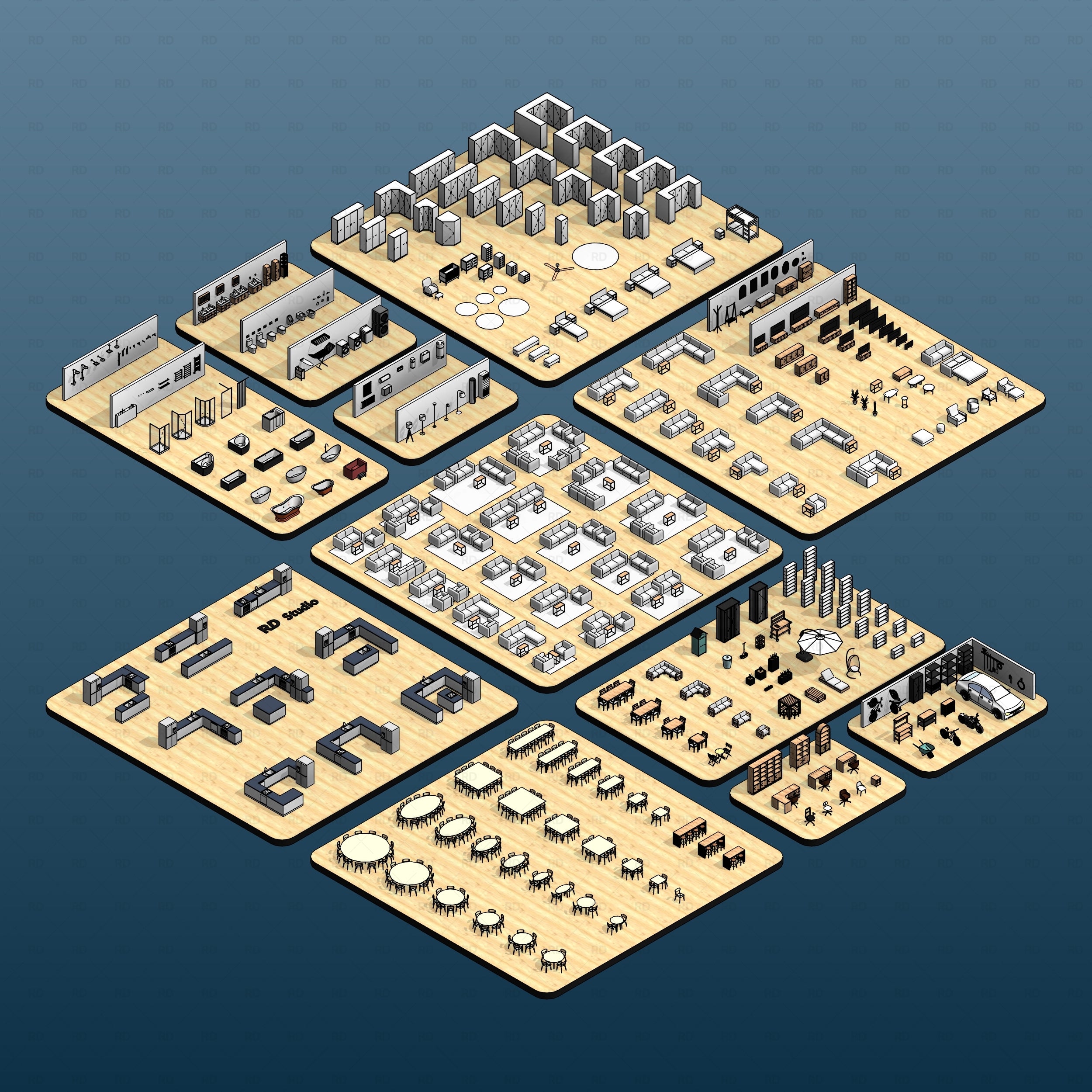


Advanced Glass Block Design: Curved Walls & Perfect Corners in Revit

Advanced Glass Block Design: Curved Walls & Perfect Corners in Revit 🧱
Once you have mastered standard straight walls and custom patterns, the next architectural challenge is tackling complex geometry. When your design deviates from a straight line - whether sweeping into a dramatic curved partition or turning a sharp 90-degree angle - modeling glass blocks in Revit can quickly become a headache.
In this advanced tutorial, we tackle the most challenging aspects of modeling glass block structures. Whether you need to design sweeping curved partitions or detail sharp architectural corners with specialized transition blocks, these pro-level workflows will help you achieve perfect alignment, seamless edges, and highly realistic BIM documentation using the Revit Glass Blocks (Curtain Walls) Pack.
Watch the full video tutorial below, or keep reading to learn the step-by-step methods for mastering advanced glass block layouts:
🎯 Common Challenges When Modeling Complex Glass Block Layouts
It is incredibly common to run into detailing issues when pushing the boundaries of standard Revit walls. When designing corners and curves, designers typically face:
- Faceted curves stretching awkwardly: Standard Revit panels will sometimes stretch to follow a curve instead of remaining rigid and true to real-world block dimensions.
- Messy overlapping corners: Simply intersecting two glass block walls usually results in overlapping geometry, Z-fighting, and unresolved mortar joints at the corner condition.
- Missing specialty blocks: Real-world manufacturers use dedicated corner pieces to transition seamlessly, but native Revit doesn't offer these out of the box.
Let's look at how to solve these issues using intelligent, parameter-driven workflows.
🎒 Method 1: Creating Curved Surfaces and Arc Walls
Glass blocks cannot bend. To create a curved glass block wall in the real world, flat blocks are laid in a faceted curve with the mortar joints slightly wedged to accommodate the radius. Because our families utilize Revit's Curtain Wall system, the software handles this faceting automatically.

How to do it step-by-step:
- Go to the Architecture tab, select the Wall tool, and choose your RD Studio Glass Block Curtain Wall type.
- Instead of the standard Line tool, select the Start-End-Radius Arc (or any curve tool) from the Draw panel.
- Draw your curved wall in the floor plan.
- Revit will automatically calculate the curve and facet the wall into individual, perfectly sized flat glass blocks based on your fixed grid spacing. The mortar mullions will dynamically adjust their angles to fill the wedged gaps, giving you a highly realistic, construction-ready curved partition!
⚠️ Crucial Note on Curve Radius:
Because the glass blocks remain fixed in size, a very tight radius will cause the inner mortar joints to pinch and the outer mortar joints to stretch extremely wide. Always check your plan view. If the mortar gap looks unrealistic, you need to either increase the radius of your curve or use a narrower glass block size.
🎒 Method 2: Integrating Specialized 90° and 45° Corner Blocks
When two glass block walls meet at a sharp angle, you don't want a clunky mortar joint or overlapping geometry at the edge. To achieve a seamless, continuous glass edge, you need to use specialized corner blocks - just like a real contractor would.

How to do it step-by-step:
- Draw two intersecting Glass Block Curtain Walls so they meet at your desired angle (e.g., 90 degrees).
- Use the Align (AL) tool or dragging tools to ensure the curtain grids line up perfectly at the corner intersection.
- You now have a beautifully resolved, continuous glass corner with no ugly seams!
🎒 Method 3: Finishing Walls with End Curve Blocks
If your glass block partition terminates in the middle of a room, you cannot just leave it with a standard flat block. In real life, leaving a raw edge exposes the sharp sides of the glass and unfinished mortar. You need a dedicated end piece to cap it off.
How to do it step-by-step:
-
Identify the exposed vertical edge of your curtain wall in a 3D or elevation view.
-
Hover over the very last glass panel on that edge and press Tab to select it.
-
Click the Pin icon to unpin them.
-
Swap the panel from your Type Selector to the End Curve / Edge Block.
-
This replaces the chopped, flat edge with a smooth, beautifully bullnosed glass finish, giving your partition a high-end, construction-ready aesthetic.
💡 Architect Tip
Mastering Grid Justification!
When building 90-degree corners, the biggest issue is ending up with a tiny, cut "sliver" block right at the edge of your beautiful corner transition. To fix this instantly, select the curtain grid line on your wall, go to your Properties panel, and look at the Justification setting.
By default, it is usually set to "Center" or "Beginning." Change the justification to force the grid to start exactly at your corner point. This ensures you have perfect, full-sized blocks at the most visible intersection, pushing any awkward fractional blocks to the hidden back end of the wall where they belong!
▶️ Watch the Full Tutorial
Ready to master these advanced detailing techniques? In the full tutorial, we walk you through exact scenarios for building arcs, adjusting intersections, and snapping corner blocks perfectly into place.
You'll learn:
- How to draw and control faceted arc walls.
- The proper way to clear corner mullions without breaking the grid.
- How to align specialized 90° and 45° transition blocks for flawless renderings.
🔗 Watch the full tutorial here
📦 Revit Packs Used in This Tutorial
To create the different glass block walls shown in this tutorial, we used the Revit Glass Blocks (Curtain Walls) Pack. This pack helps you quickly build translucent partitions, feature walls, and daylight-friendly facades without modeling every single block and mortar joint from scratch!

🪟 Revit Glass Blocks (Curtain Walls)
Download a collection of fully parametric Revit Glass Block families designed for flexible architectural layouts and decorative wall systems. The pack includes unique block patterns, multiple mortar options, and special corner and transition blocks for curved and angled walls.
View Product →



Leave a comment